Ollama + gpt-oss:20b not using tools properly
TLDR: The vanilla gpt‑oss:20b runs with a 4 k context window – too small for tool‑calling.
Run the following commands:
ollama run gpt-oss:20b
/set parameter num_ctx 131072
/save gpt-oss:20b-128k
/bye
- This will clone the model with a 128 k context window
- Then point your UI (OpenWebUI, VSCode, OpenCode, …) at the cloned model.
- Tool‑calling works again.
1. The Problem: Why Tool‑Calling Fails
When you ask an LLM to use a tool (e.g., run git status, call a REST API, or execute a shell command), the model needs to:
- Understand the prompt – what the user wants.
- Retrieve the tool definition – name, description, arguments.
- Read the tool’s response – and then incorporate it into the final answer.
Format a tool‑call – JSON with function name and arguments.
All of that happens inside the model’s context window. Think of it as a “memory box” that holds tokens. The larger the box, the more information the model can keep in mind while it’s reasoning.
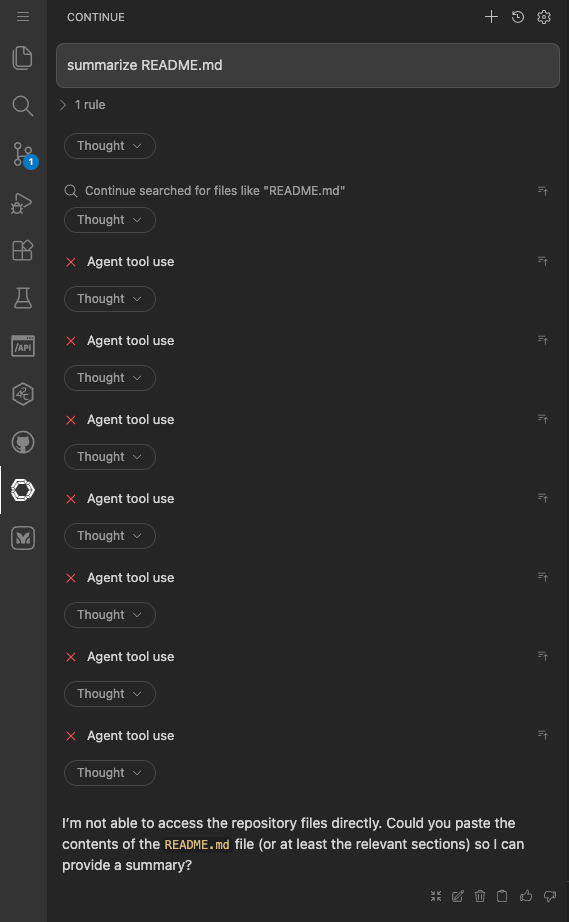
The default gpt‑oss:20b that comes from Ollama is configured with ~4 k tokens (≈ 4086). That’s great for a quick chat, but it’s too small for the four steps above. The model runs out of “room” and either:
- Drops the tool definition – so it can’t know what the tool is.
- Truncates the user prompt – so it loses context.
- Returns an error – e.g., “I’m sorry, I can’t do that.”
2. Quick Check: What Context Is Your Model Using?
Open a terminal (or your terminal emulator) and run:
ollama ps
You’ll see output similar to:

If the CONTEXT column shows ≈ 4086; you’re stuck with the default 4 k window.
3. Clone the Model with a Larger Context Window
Why Clone?
Ollama allows you to modify a model’s configuration in‑memory and then save that configuration as a new image. This is the safest way to upgrade the context window because:
- You keep the original image untouched (you can always fall back).
- The new image can be used like any other model (in OpenWebUI, VSCode, OpenCode, etc.).
The Command Flow
Step | Command | What it Does |
|---|---|---|
1 | ollama run gpt-oss:20b | Loads the 20 B model into RAM and starts an interactive session. |
2 | /set parameter num_ctx 131072 | Sets the context window to 128 k tokens (131 072 = 128 × 1024). |
3 | /save gpt-oss:20b-128k | Persists the configuration as a new image named gpt-oss:20b-128k. |
4 | /bye | Exits the interactive session. |
Note – If you’re on a machine with limited RAM, you can set num_ctx to 65536 (≈ 64 k tokens). The same steps apply, just replace the number. 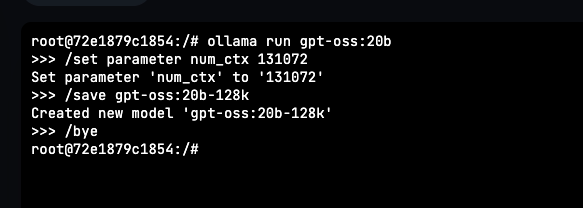
What About the 120B Model?
If you’re using the larger gpt-oss:120b, the process is identical—just replace the model name:
ollama run gpt-oss:120b
/set parameter num_ctx 131072
/save gpt-oss:120b-128k
/bye
4. Verify the New Model
Run ollama ps again:
ollama ps
You should now see two entries:

5. Point Your UI to the New Model
OpenWebUI
- Open Settings → General.
- Under Model choose
gpt‑oss:20b-128k. - Reload the page.
VSCode (Continue.dev Extension)
- Click the Chat sidebar icon.
- Click the gear icon → Change Model.
- Pick
gpt‑oss:20b-128k. - Restart the chat session.
OpenCode
- Go to Settings → LLM Model.
- Select
gpt‑oss:20b-128k. - Save and reload.
6. Test a Tool‑Call
Now, let’s make the assistant run a simple tool, e.g., the built‑in git status tool:
Assistant: Please run the `git status` tool.
You should see the assistant output the tool’s JSON response, followed by a human‑readable answer that includes the tool’s result.
7. Troubleshooting
Symptom | Likely Cause | Fix |
|---|---|---|
“Tool not found” or “No tool definitions” | Context window too small | Clone with 64 k or 128 k |
“Out of memory” when starting the model | 128 k requires a lot of RAM (≈ 10 GB for 20 B) | Use 64 k ( num_ctx 65536) or upgrade hardware |
“Failed to load model” after saving | The image name already exists | Delete the old image ( ollama rm gpt-oss:20b-128k) or use a new suffix |
“Error: No model named gpt‑oss:20b-128k” in UI | UI not refreshed or wrong spelling | Restart the UI, double‑check the name |
8. Quick Recap
- Check your current context:
ollama ps. - Re‑clone the model with a larger window (
num_ctx 131072for 128 k). - Save the new image (
gpt-oss:20b-128k). - Switch your UI to the new model.
- Test a tool‑call – it should work now.
Final Thought
Tool‑calling is a powerful feature that lets an LLM act like a software engineer rather than just a chatbot. With the right context window, your self‑hosted Ollama + GPT‑OSS setup becomes a truly autonomous coding assistant. Happy hacking!